
What Is AniFam?
AniFam APK is an anime streaming app for Android that gathers anime series and movies behind one simple home screen. A fan opens the app, sees what is trending and what is airing now, searches for a title by name, and starts an episode from a clean title page. The point of the design is that the anime stays in front and the app itself stays out of the way.
The AniFam APK suits two kinds of viewer. A long time fan uses it to follow weekly episodes, keep a list across many series, and jump back into a half finished episode. A new viewer uses it to find a first series: the trending shelf shows what other fans are watching, the genre shelves sort the catalogue by mood, and each title page shows a short description, genre tags, and an episode list before anything plays.
Playback is flexible where a title offers it. Many titles let the viewer choose subtitles or dubbed audio, so the same episode can be watched in the original Japanese audio with subtitles or in dubbed audio. A viewer who prefers one mode can stay in it, and a viewer who switches between modes can change per title.
Main Features
The AniFam APK is built around a small set of tools that cover a full watch night, from discovery to the last episode of a long run.
Trending and popular anime. The home screen leads with titles that are popular right now, shown with posters, names, genre tags, and short descriptions. A viewer with no title in mind can start here and find something in a minute.
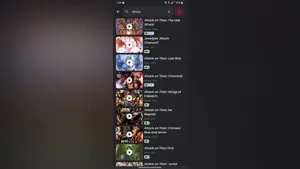
Search by title, genre, and format. The search bar finds a series by name, and genre shelves narrow the catalogue when only a mood is known. Results show poster cards with enough detail to judge a title before opening it.
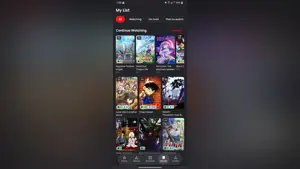
Continue watching. The app remembers where playback stopped, so a viewer returns to the same episode and the same spot instead of hunting through a series again.
Recently added. A shelf of new titles and new episodes keeps returning viewers current without a separate news check.
Watch2Gether. Friends and family can watch the same episode in a shared session from different places, which turns a weekly episode into a small event.
Multiple streaming servers. When one source is slow or fails, another source can be tried for the same episode, so a single weak link does not end the night.
Offline download. Episodes that offer download can be saved on the device and watched without a connection, which suits commutes, flights, and weak home Wi-Fi.
Subtitle and language options. Subtitles in English and other languages are offered where a title provides them, and the language can be changed to match the viewer.
Watchlist import. A list built elsewhere can be imported from AniList or MyAnimeList, so a fan does not rebuild years of planned titles one by one.
Community discussion. Fans can talk about characters, episodes, and new releases with other viewers instead of watching alone.
Anime Genres
The catalogue covers the genres most anime fans ask for first. Action and adventure carry the long running series and the high energy premieres. Romance, comedy, and slice of life cover quieter nights. Fantasy and supernatural titles carry the world building, while horror, thriller, and science fiction cover the darker and stranger shelves. Anime movies sit beside series, so a single evening film and a hundred episode run are both one search away.
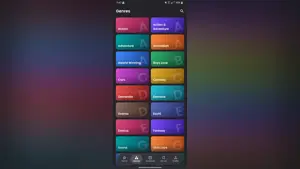
Genre tiles on the genres screen make browsing fast. Tapping a genre shows its titles without a typed query, and the same genre tags appear on every title page, so a viewer who likes one series can follow its tags to the next.
AniFam Screenshots
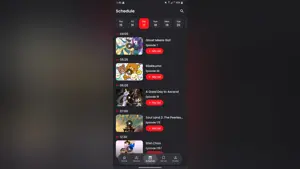
Every image below is a real screenshot from the AniFam APK. No artwork, no mockup, and no invented phone screen is used here. The set starts on the home screen, then shows My List, search, a title page, the genre grid, and the weekly schedule.
Swipe or scroll right for the next image.


How AniFam Works
Watching with AniFam APK follows one short path. First, the home screen shows trending titles, top airing titles, and a continue watching row. Second, a title is opened from a shelf, from search, or from My List. Third, the title page shows the description, genre tags, and the episode list. Fourth, an episode is chosen and playback starts with the subtitle or audio option the viewer prefers. Fifth, the episode joins the continue watching row, so the next session starts in the same place.
My List is the long term memory of the app. Titles can be marked as watching, on hold, or planned, which keeps a long backlog honest: what is active stays visible, what is paused waits without clutter, and what is planned stays ready for the next gap. The schedule screen adds timing, with a weekly calendar that shows which episodes air on which days.
Safety and Verification
Any app installed from outside a store deserves a careful check, and AniFam APK is no exception. This site lists the app with its real file size in the APK details table, so a downloaded file that does not match that size is a warning sign. Before installing, run the phone security scan on the file, read the permissions the app requests, and check that the app asks for nothing a video player does not need, such as contacts or messages.
Our review team tests the app on real devices before it is listed: a Galaxy A55, a Pixel 8, a Redmi Note 13 Pro, an Infinix Note 40 Pro, and a Galaxy A13. The test covers install, search, episode order, playback, continue watching, and uninstall, so a reader knows the guide describes the app as it actually behaves. The full method is on the how we review page.
One honest note matters for this app. AniFam APK is not listed on Google Play, and no public store rating is published for it. Readers should weigh that fact, keep the file check above, and judge the app on their own device after install.
How to Install AniFam on Android
Installing AniFam APK on an Android phone takes a few minutes and no extra tools. The steps below are written for this site and follow the order a first time installer actually meets them.
Step 1: Get the file from the download page. Open the download page on this site, wait for the short countdown, and use the download button when it appears. The file saves to the phone Downloads folder.
Step 2: Allow this one install. When the phone asks about installing from this source, allow installs for the browser used for the download. This permission covers only that browser, and it can be switched off again after the install.
Step 3: Open the file and confirm. Tap the downloaded file in the notification or in the Downloads folder, read the permissions shown, and confirm the install.
Step 4: Open AniFam and search. Find the AniFam icon in the app drawer, open it, and search for a title. No account is needed to browse, and a first episode can be started straight from the title page.
Step 5: Set the watchlist habit early. Add the first two or three titles to My List right away. Later sessions then start from My List instead of from a fresh search every time.
AniFam APK on Android TV
AniFam APK also works on a TV screen, which suits living room watching. On Android TV or Google TV, the app is installed with a downloader app: the downloader opens, the download page address is entered, the file is fetched, and the install is allowed for the downloader. On Fire TV the same path runs through the developer options setting for installs from unknown apps.
Once installed, the whole app answers to the remote. The arrow keys move across the home screen, OK opens a title or an episode, the play and pause button controls playback, volume keys handle sound, and the left and right keys seek within an episode where the player supports seeking. The episode grid, which can run into hundreds of episodes for long series, is navigated with the same arrows, so no phone is needed once the app is on the TV.
Troubleshooting
The app will not install. Check that installs from the browser are allowed, that enough free storage exists for the file plus the installed app, and that the file size matches the APK details table. A partial download is the most common cause, so download again on a stable connection.
An episode buffers or fails. Try another streaming server for the same episode, move closer to the Wi-Fi router or switch to a faster network, and close background downloads. If only one title fails while others play, the source for that title is the likely fault.
Continue watching does not resume. Make sure the same title is opened from the continue watching row rather than from a fresh search result, and check that the app was closed normally rather than forced closed mid episode.
Subtitles are missing or out of sync. Check the subtitle option for that episode, try the other subtitle language where one is offered, and restart the episode so the subtitle track loads from the start.
The app looks different after an update. Shelves move between builds. Use search to reach a known title, then re-add it to My List if a list was reset, and check the schedule screen for the weekly layout.
Technical Details
AniFam APK is an Android app in the entertainment category, built for phones and for Android TV. It needs Android 7.0 or newer, which covers a wide range of current and older phones. The install file is small for a streaming app, so it fits easily beside other media apps, though offline episode downloads need their own storage on top of the install. Playback is streamed over the network, so a steady connection matters more than a powerful phone, and the multi server option exists for nights when one source is slow. The app is free to use, with no account needed to browse titles.
Old Versions
This site lists the current build of AniFam only. Older builds are not listed here, because an older streaming build can lose working sources faster than a current one, and a reader who installs an old build may spend the night fixing sources that the current build already handles. Readers who need an older build for an older phone should check the requirements in the APK details table first, and use the current build wherever the phone meets them.
Alternatives to Consider
A viewer who wants a different shape of anime watching has three honest options. A licensed anime streaming service carries officially licensed catalogues with official subtitles and dubs, at a subscription price, and suits viewers who want licensed content only. An anime tracker app carries no video at all and instead tracks what has been watched across services, which suits viewers who already subscribe elsewhere. A local media player plays files already owned, which suits viewers with a personal collection. AniFam APK sits between these: a free app with its own catalogue, shelves, and watchlist in one place.
How to Update
Updating AniFam APK keeps the watchlist and the continue watching row intact when it is done as a reinstall over the existing app. Download the new build from the download page, install it over the current app without uninstalling first, and open it to check that My List and the continue watching row are still there. If a list ever looks empty after an update, re-import it from AniList or MyAnimeList, which is the fastest way back to a full queue.